How to Upgrade PC Storage: Check the Slot Before You Buy an SSD
Upgrade PC storage by checking drive type, M.2 size, interface, available slots, cooling and migration plans before buying an SSD.

An SSD upgrade is often discussed as a capacity decision, but the first constraint is physical and electrical compatibility. A fast-looking drive is not useful if your computer has no matching slot, shares that slot with another device, or needs a different length or connector. Start with the existing hardware, not the product listing.
Identify the drive you have and the slot you can use
Desktop and laptop storage can use several shapes. A 2.5-inch SATA SSD connects by cable; an M.2 SSD is a small board that mounts directly to a socket. M.2 describes the shape, not automatically the protocol: an M.2 drive may use SATA or PCIe/NVMe. Your motherboard or laptop manual is the authority for the supported interface, drive lengths and which slots are populated.
Do not infer support from a vacant-looking space inside a laptop. Check the exact model documentation and, if opening the device, its service manual. Opening some devices can involve warranty or repairability considerations.
Check what the slot shares
Some systems share PCIe lanes or disable a SATA port when a particular M.2 socket is used. That is not necessarily a problem, but it changes the plan. Read the storage table in the motherboard manual, note what is already connected, and decide whether you are adding a drive or replacing one.
Heatsinks are another fit issue. A desktop M.2 slot may have an included cover; a laptop bay may not have room for a drive with a tall aftermarket heatsink. Use the system documentation rather than assuming a bundled heatsink will fit.
Plan the data move before removing anything
Adding a second drive is different from replacing the system drive. For a replacement, decide whether you will reinstall the operating system, clone the old drive using software supported by the drive maker, or restore from a verified backup. A backup is not proven by being configured once: confirm that the files you need can be found and restored.
If encryption is enabled, retain recovery information through the approved account or organizational process before changing hardware. Avoid copying system folders by hand and assuming the result will boot.
Capacity and speed come after compatibility
Buy enough space for the files you expect to keep, with working room for updates and temporary files. Interface generation and benchmark figures matter only after confirming the slot and workload. A drive limited by the system can still be a useful upgrade; it simply should not be purchased on the assumption that every advertised speed will appear.
RAM and storage solve different constraints. If programs close or swap heavily under memory pressure, see how much RAM you need; extra SSD capacity will not add memory.\n\n## Sources\n\n- https://semiconductor.samsung.com/consumer-storage/support/documents\n- https://eu.crucial.com/support/ssd-support\n\n*Cover photo: Nat Weerawong (@nathadej) / Unsplash License. Contextual photograph; not a product test or installation instruction.*An SSD upgrade is often discussed as a capacity decision, but the first constraint is physical and electrical compatibility. A fast-looking drive is not useful if your computer has no matching slot, shares that slot with another device, or needs a different length or connector. Start with the existing hardware, not the product listing.
Identify the drive you have and the slot you can use
Desktop and laptop storage can use several shapes. A 2.5-inch SATA SSD connects by cable; an M.2 SSD is a small board that mounts directly to a socket. M.2 describes the shape, not automatically the protocol: an M.2 drive may use SATA or PCIe/NVMe. Your motherboard or laptop manual is the authority for the supported interface, drive lengths and which slots are populated.
Do not infer support from a vacant-looking space inside a laptop. Check the exact model documentation and, if opening the device, its service manual. Opening some devices can involve warranty or repairability considerations.
Check what the slot shares
Some systems share PCIe lanes or disable a SATA port when a particular M.2 socket is used. That is not necessarily a problem, but it changes the plan. Read the storage table in the motherboard manual, note what is already connected, and decide whether you are adding a drive or replacing one.
Heatsinks are another fit issue. A desktop M.2 slot may have an included cover; a laptop bay may not have room for a drive with a tall aftermarket heatsink. Use the system documentation rather than assuming a bundled heatsink will fit.
Plan the data move before removing anything
Adding a second drive is different from replacing the system drive. For a replacement, decide whether you will reinstall the operating system, clone the old drive using software supported by the drive maker, or restore from a verified backup. A backup is not proven by being configured once: confirm that the files you need can be found and restored.
If encryption is enabled, retain recovery information through the approved account or organizational process before changing hardware. Avoid copying system folders by hand and assuming the result will boot.
Capacity and speed come after compatibility
Buy enough space for the files you expect to keep, with working room for updates and temporary files. Interface generation and benchmark figures matter only after confirming the slot and workload. A drive limited by the system can still be a useful upgrade; it simply should not be purchased on the assumption that every advertised speed will appear.
RAM and storage solve different constraints. If programs close or swap heavily under memory pressure, see how much RAM you need; extra SSD capacity will not add memory.\n\n## Sources\n\n- https://semiconductor.samsung.com/consumer-storage/support/documents\n- https://eu.crucial.com/support/ssd-support\n\n*Cover photo: Nat Weerawong (@nathadej) / Unsplash License. Contextual photograph; not a product test or installation instruction.*
Compatibility flow before choosing an SSD
- Identify the exact laptop, desktop motherboard, or handheld model and open its manual.
- Confirm whether the storage bay is a 2.5-inch SATA bay, an M.2 slot, or something else.
- For M.2, confirm the physical length, keying, supported PCIe or SATA interface, generation, lane support, and heatsink clearance.
- Check firmware, BIOS, capacity limits, warranty instructions, and whether another installed device shares lanes or a slot.
- Back up important files and decide whether to clone the old drive or install the operating system fresh.
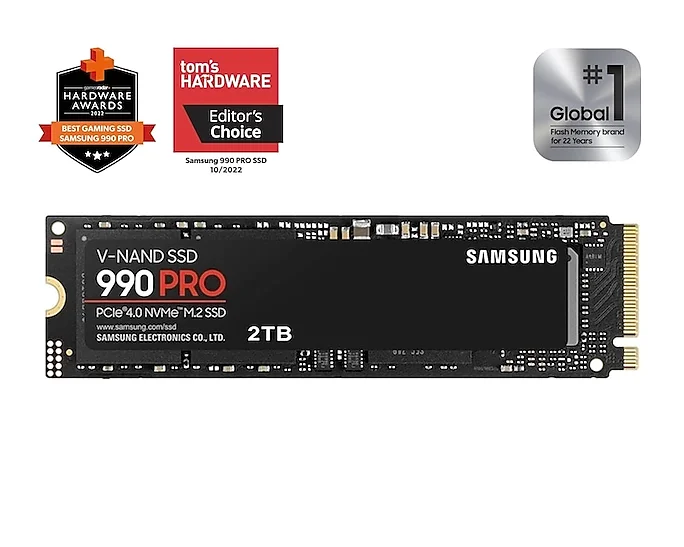
Conditional product example: Samsung 990 PRO 2TB
Who this fits: someone whose manual confirms support for an M.2 2280 PCIe NVMe drive.
Decisive detail: Samsung lists this model as an M.2 2280 PCIe Gen 4.0 x4 NVMe internal SSD.
Why included: it is a real published MeetFinds product with a matching US manufacturer source.
When to skip: do not use it for a SATA-only bay, an unsupported M.2 slot, or a system without sufficient physical clearance.
Source checked: Samsung US specifications.
Region: United States manufacturer page checked on 14 September 2026.
This product is relevant only if your system supports the required interface and form factor. An M.2 connector alone is not proof of compatibility.
Product-discovery evidence checked
These model references are documentation-based, not hands-on tests. Specifications and regional pages were checked on 14 September 2026.
This article may contain affiliate links. If you purchase through them, Findory may earn a commission at no extra cost to you. Read our disclosure.